Start in ChatGPT or the AI app you use for research. You choose the audience and style. The agent organises the findings into slides.
Gather findings in your research app.
Ask your research assistant, “How do street trees cool a neighbourhood? Find sources I can check.” Open the sources and keep the findings you want to present.
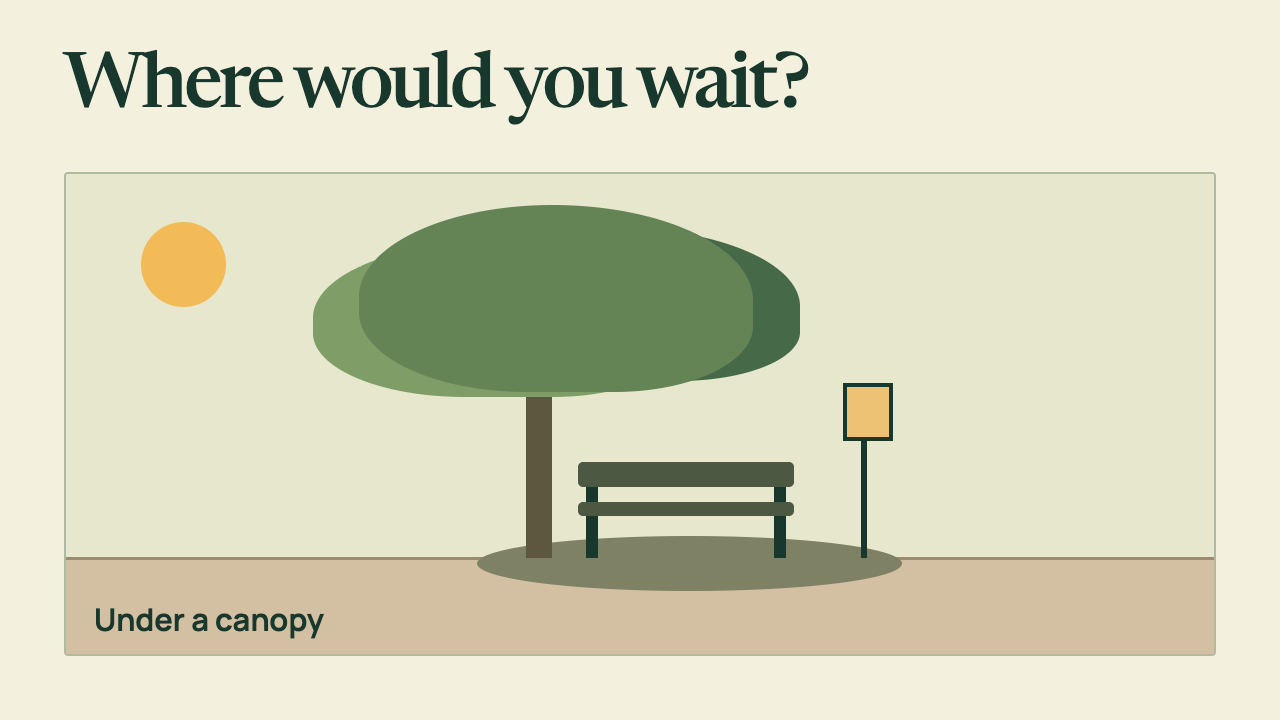
Trees shade people and pavement by intercepting sunlight. Water evaporating from leaves uses heat and can cool the surrounding air. Which part of a street gets shade depends on the size and position of the canopy and the time of day.
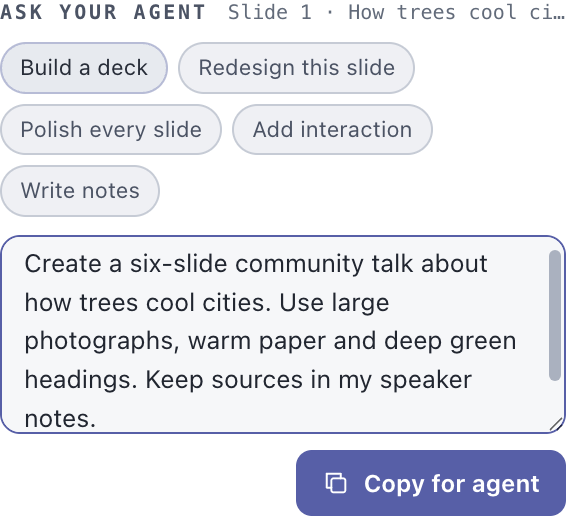
In DeckCoderAI, choose Create presentation and give your talk a name. Connect your AI client. In Agent Booth, choose Build a deck. Add the audience, length and visual direction to the request.
Edit the audience or replace the example style with your own.
If you use the same colours, typography or image style across talks, open Style guide in Agent Booth to save your design preferences.
Send the request in your AI app.
Choose Copy for agent in Agent Booth and paste the prepared request into your connected AI client. If that client already holds your research, continue in the same conversation. If you researched elsewhere, include your findings and source links with the request.
Agent Booth in the Mac preview. Select the image to inspect the controls.
Ask the agent to save the presentation and check its slides.
Read the finished talk in DeckCoderAI.
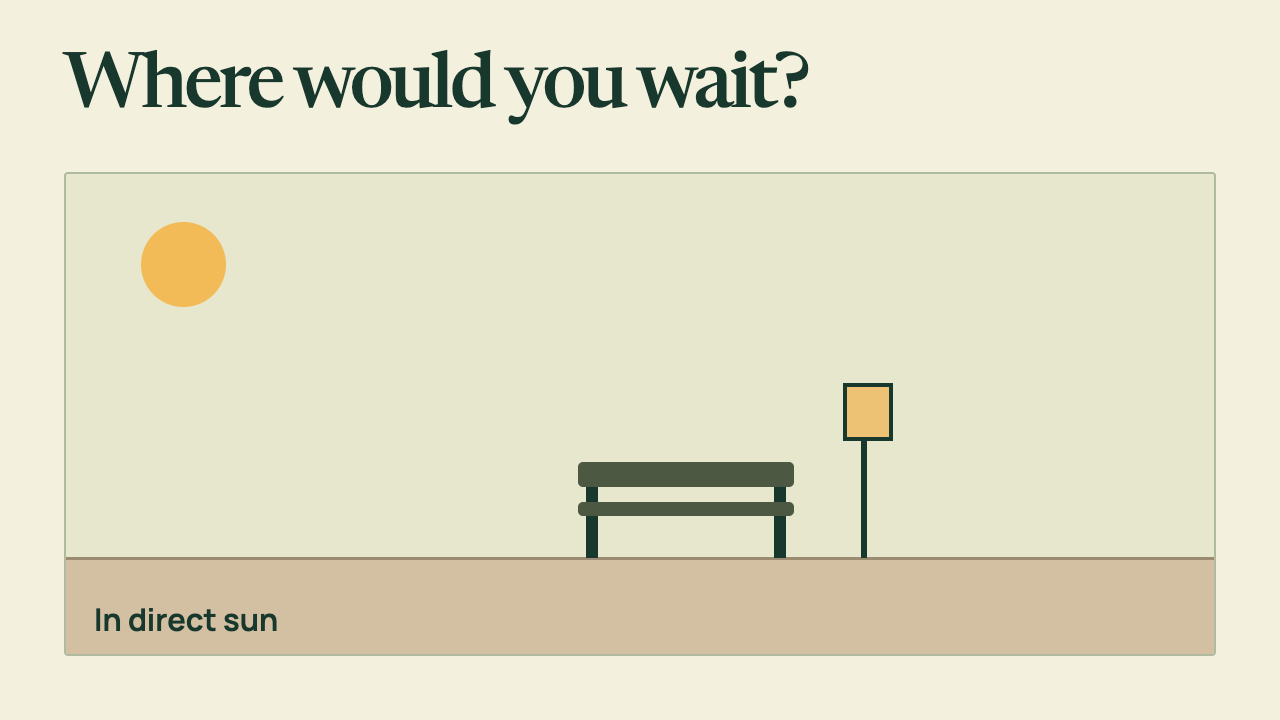
Open Slides. In this example, the first two slides introduce the street and the heat it holds. Slide three asks people where they would wait. The talk ends with a decision the neighbours can make together.
Use this route when you know what you want to say. You write the script for each slide. The agent designs what the audience sees.
Watch the request and the saved revision in the Mac preview. Follow the same steps below.
Write what you will say.
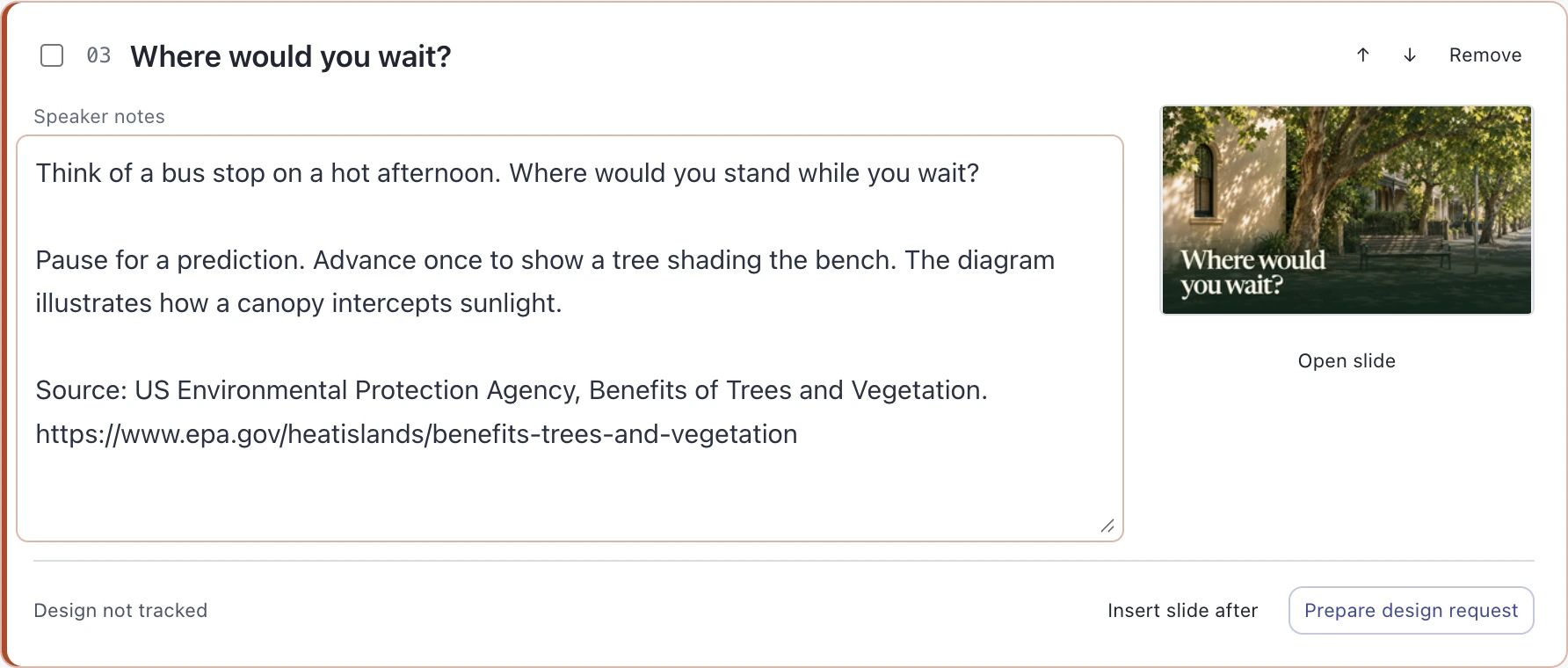
Choose Create presentation → Story → Add slide. Name the card and write in its speaker notes. Add a card for each part of the talk. In our example, the third card is called Where would you wait?
Speaker note
Think of a bus stop on a hot afternoon. Where would you stand while you wait?
Choose Prepare design request on the card. Select the image to see the full card.
Choose the slide to design.
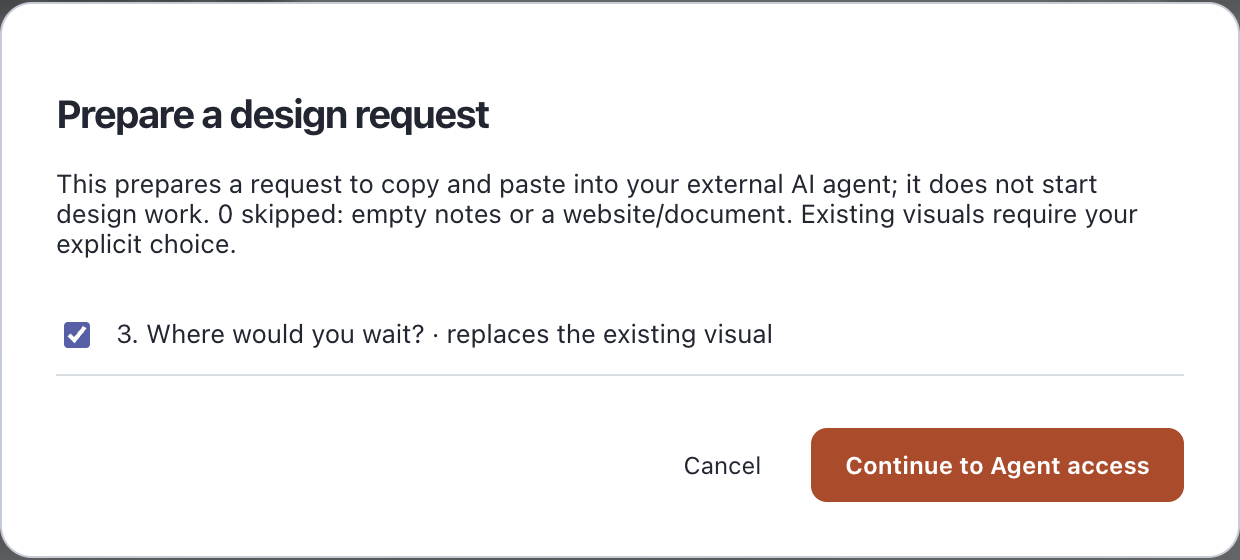
On that card, choose Prepare design request. To design several slides, tick their cards and choose Prepare selected. Review which visuals will be replaced. If prompted, choose Continue to Agent access, enable access for the open presentation and choose Continue design request.
Check the slide number before continuing. Select the image to see the full dialog.
Give the agent your design direction.
Choose Prepare agent request. In Agent Booth, choose Copy for agent and paste the prepared request into your connected client. Add a design direction alongside it. The agent reads the selected slide’s saved notes through the connection.
Try the revised slide.
When the agent saves the visual, open the slide and advance once. The bench stays in place as the tree and its shadow appear. Your spoken question stays in the notes. Try another direction or move to the next Story card.
Original slide · Photograph
Connect your agent.
Your AI runs in a separate client on your computer. Set up the client once, then choose which presentation it can use.
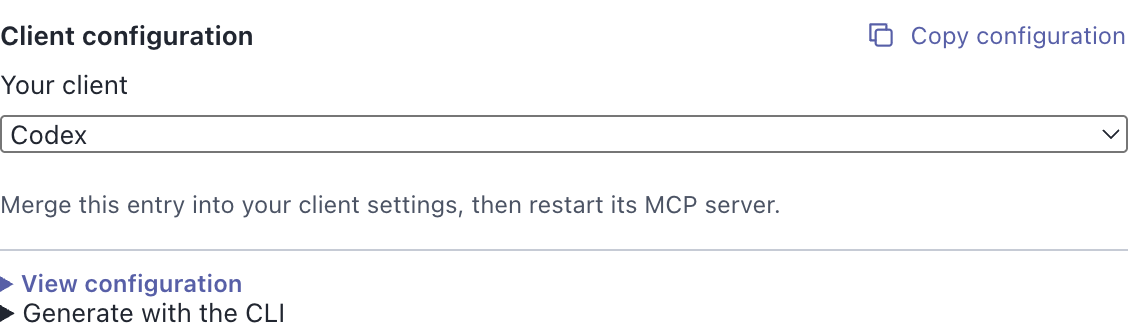
Choose Agent access → Client configuration. Select your client and choose Copy configuration. For Codex, add the copied entry to ~/.codex/config.toml, keeping your existing settings, then restart Codex. For another client, add its generated entry to that client’s MCP settings and restart its connection.
In DeckCoderAI, choose Enable for this presentation. Ask the client, “What presentation do I have open in DeckCoderAI?” Check that it names your deck.
Copy the configuration from your installed app so the paths match your computer.
Access ends when you turn it off, open a different presentation or quit. Your AI provider handles the material you share with it. Read the agent setup guide.
To explore before connecting an agent, choose Try the sample deck on the welcome screen, or download the tree presentation below.
Take it to the room.
Open your saved slide and choose Edit slide to change its wording. Choose Save & preview, then Present. Advance the bus-stop slide and use Back to repeat the question. The audience sees the reveal and your notes stay on your screen.
Share a browser export for supported interactions, or a .deckcoder file for an editable presentation with notes. PowerPoint export contains static slide images and optional editable notes.
 DeckCoder

 Pavement holds heat
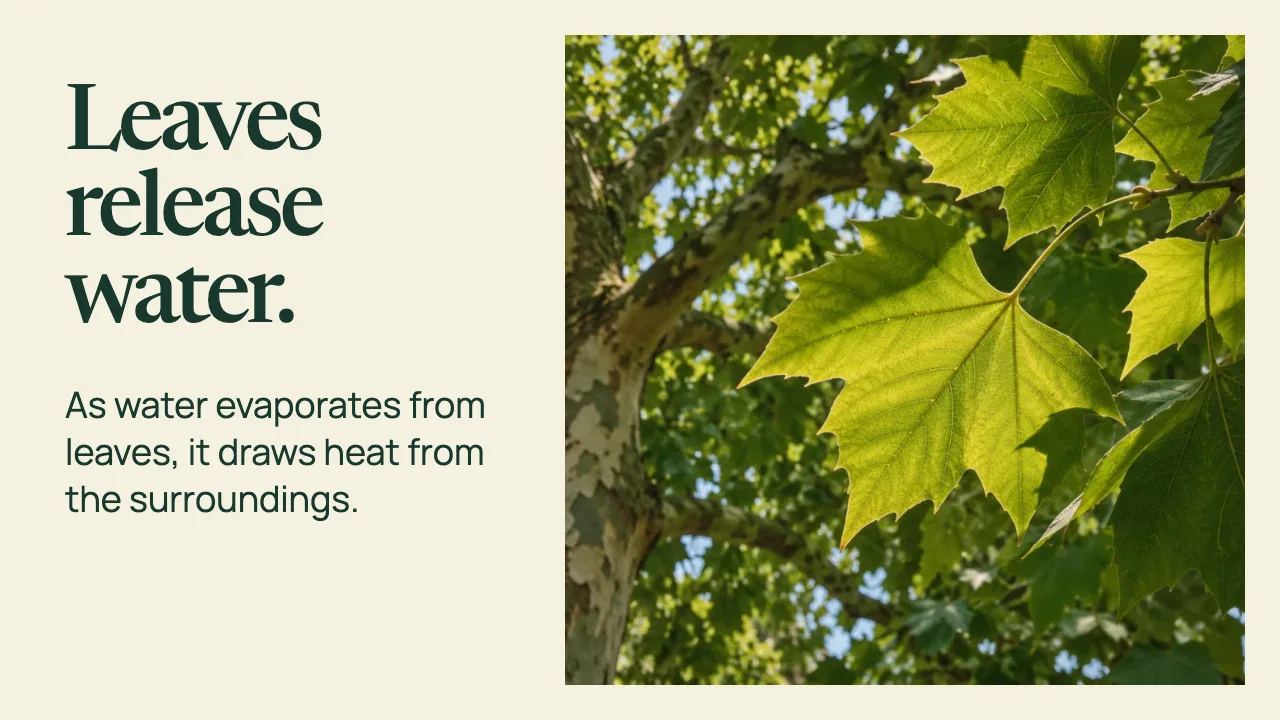 Leaves release water
 Put shade where people wait
 Which stop would you shade first?